


 147
147
Learning Record Report – (completions only)
|
Step |
Task |
Screenshot |
|
1 |
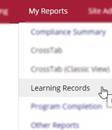
In your menu bar at the top of your home screen, Select My Reports/Learning Records. |
|
|
2 |
Select the dates you would like to include in the report. |
|
|
2b |
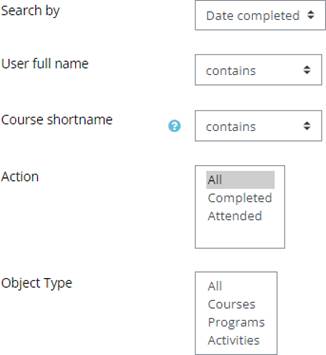
There are other filters you can use to fine-tune your report: Search by: You would want to leave this at Date completed to see the Learning Records of completion. User full name: Type the full name as it appears in TLC to view/print Learning Records for a particular user. Course Name: Type in a key word of a course title to see a particular course. Action: This report will only show Completed unless you utilize the Face-to-Face activity. Object Type: If you leave at all, it will show all activities within a course. If you want just course completions, select Completed. It is recommended you do not change the settings for Action or Object Type to ensure accuracy of the report. |
|
|
3 |
Select Filter to see the report on screen. |
(see below for on-screen view) |
|
4 |
To download, select the drop-down below the report table Download table data as, and select Comma separated values text file. |
|
|
5 |
Select Download. |
|




The report will automatically download which then you can save locally and format for printing.
 |

